Showing posts with label windows tricks. Show all posts

Thursday, 3 January 2019

Windows Admin Password reset methods with disk attached


 Reset Windows Server 2012 Admin Password with Command Prompt

Command Prompt is truly an excellent command line interpreter which can be used to interpret various tasks at the cost of certain code lines in short span of time. Here we would implement cmd to remove the forgotten password. Read the steps carefully to perform the method:
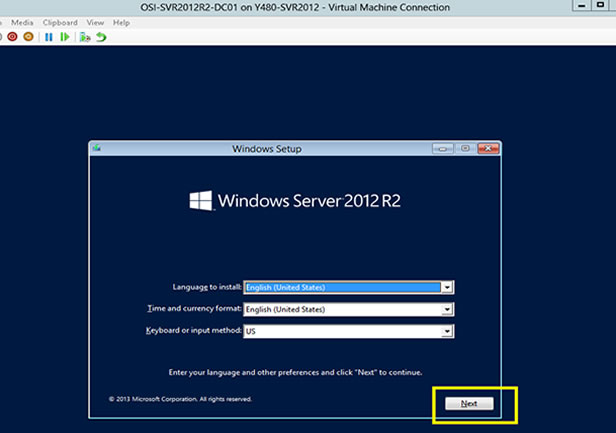
Step 1. Firstly, create a bootable disk using CD/DVD or USB and insert it into the locked computer.
Reset Windows Server 2012
Step 2. Choose your language and click on "Troubleshoot" option.
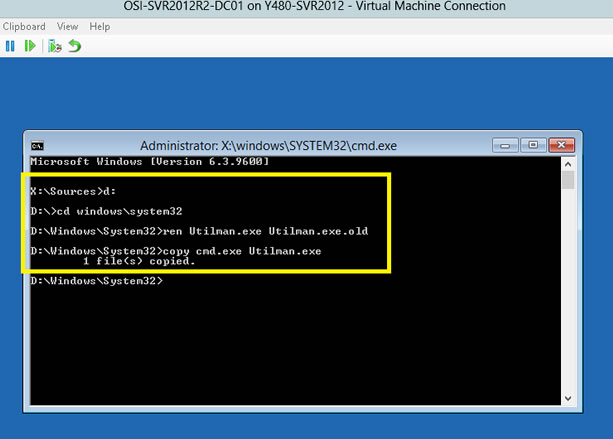
Step 3. Click on "Command Prompt" button to start it on an advanced mode and type the command scribbled below when the black dialog box turns up:
d: cd windows\system32: move Utilman.exe Utilman.exe.old
                                              : copy cmd.exe Utilman.exe
type command
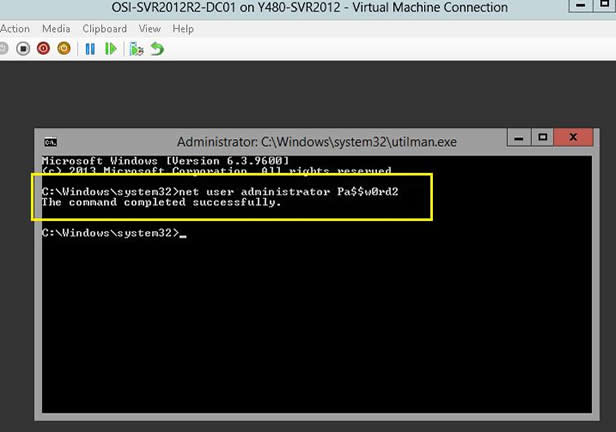
Step 5. Exit your command prompt and then click "Continue". Your Windows server 2016 computer will re boot and go to the logon screen. Here click Windows Key + U to oepn command prompt again, then type command:
net user   --> it will show all user accounts available in OS
net user administrator Pa$$w0rd2   --> it will reset password of account
start to reset Reset Windows Server 2012
Write the actual username and the newly created password in place of USERNAME and PASSWORD option. Pa$$w0rd2 will be set to password for the Administrator user (case sensitive).
Now your job is done! You can enter the locked account with the newly set password.
Note:
1) In case you enter any wrong command mistakenly, it can cause serious damage to the system.
2) If the user is not familiar with the cmd, better not use it .

Monday, 2 April 2018

Change any windows IP configuration setting in CMD with this powerful tool NETSH


Show TCP/IP settings—The command
netsh interface ip show config
shows the system's current TCP/IP configuration settings. You can see whether the system is using DHCP or static addressing as well as view the system's current IP address, subnet mask, gateway address, and DNS servers.
Change network configuration—Netsh can change the current network configuration. The command
netsh interface ip set
  address "Local Area 
  Connection" static 
  192.168.0.10 255.255.255.0
  192.168.0.254
sets the IP address of the system configuration Local Area Connection to 192.168.0.10, the subnet mask to 255.255.255.0, and the gateway address to 192.168.0.254. This use of Netsh comes in handy for laptops that must switch between static and dynamic addressed networks.
Use a dynamic DHCP assigned address—The command
netsh interface ip set
  address "Local Area 
  Connection" dhcp
sets the IP address of the Local Area Connection system configuration to use DHCP addressing.
Change a DNS server address—When you change the system's IP address type, you almost always have to change the DNS server's address as well. The command
netsh interface ip set dns
  "Local Area Connection" 
  static 192.168.0.2

Dynamically assign the DNS server address—When you switch to dynamic DHCP addressing, you typically also want the DNS server address to be assigned dynamically. The command
netsh interface ip set dns 
"Local Area Connection" dhcp
sets the Local Area Connection interface to use a DHCP-assigned DNS address.
Configure a WINS server—Netsh also lets you configure WINS servers. The following command configures a system's Local Area Connection interface to use a WINS server that has the IP address 192.168.100.3.
netsh interface ip set wins 
  "Local Area Connection" 
  static 192.168.100.3

Work with other interfaces—Netsh works with DHCP, Internet Authentication Service (IAS), and RAS interfaces as well as the local network interface. The command
netsh dhcp dump > dhcpcfg.dat
dumps the local DHCP server's configuration to the dhcpcfg.dat file. You can use this file in conjunction with Netsh to recreate the DHCP server.
Work with remote systems—One of Netsh's best hidden features is its ability to work with remote systems. The command
netsh set machine remotecomputer
sets the current computer to a different system on the network.
 Save the current configuration—The Interface Dump subcommand saves your current network configuration and generates a script that you can use to regenerate the configuration. The command
netsh interface dump > 
  mycfg.dat
redirects the Dump command to the mycfg.dat file.
Restore network configuration—The Netsh Exec command runs a Netsh script file. The command
netsh exec mycfg.dat
restores to your system the network configuration data that the preceding sample command saved.

Wednesday, 11 January 2017

How to delete saved passwords for network drives in Windows

 
If you saved a password for a network drive in windows and want to remove it, press the keys [Windows] + [R] to open the windows command line. Then enter
control keymgr.dll
and click on "OK" to open the windows credential manager which allows you to manage and delete passwords saved in Windows.


This procedure works for all Windows versions

Saturday, 27 February 2016

remove shortcut virus in pendrive


Remove Shortcut Virus From Pen Drive & SD Card


             There are 2 methods you can use to remove this virus: using CMD or Software Tool. Before beginning I highly recommend you to First Scan storage with your antivirus and then go for below method. If your pen drive is bootable then it may change to normal.

Method 1 > Using command prompt


             Open Command prompt as Administrator (Windows 7 or earlier: Windows key + R > Type CMD & ENTER, Windows 8: Search for “CMD” > Right click to CMD and Select “Run as Administrator” or right click over Start button and select “command prompt (Admin)

           Connect Your USB storage (Pendrive/SD card) to your Computer.

           Scan your storage with your antivirus program (Not compulsory but its effective) > If your antivirus found virus then delete it.

           Type in Command prompt :  attrib -h -r -s /s /d <Your USB drive letter>:\*.* (See <Your USB drive letter> from My computer and then type it For ex, if your drive letter is “D” then the command is like: ” attrib -h -r -s /s /d D:\*.* “)

To know about this command Type ” attrib /? ” In CMD.

               Now your Shortcut files again convert to normal files. Delete unknown files from your storage aftercommand process completes. I highly recommend you to after removing shortcut virus copy your USB data to your computer > Format the USB storage > Then again re-copy USB data back.